How to Set Up & Use TowCal
TowCal is a hitch calendar built for towboat and offshore crews. Tell it your rotation once and it lays out up to 18 months of on/off days, estimates your paychecks, and keeps your reminders, credentials, and planning tools in one place — all stored privately on your own phone or tablet (it runs native on iPad and Android tablets too). Here's how to get it dialed in.
New in TowCal 1.6
- Paid by day of week? Set paydays as every week, every 2 weeks, or once a month on a weekday, instead of only by date. Your existing schedule stays exactly as it was. How to set it up
- Crew change day pay rate: choose whether going-to-work and coming-home days pay a ½ day or a full day.
- Simpler Discharge Calc: barrels, number of tanks, and the feet in each tank. How it works
- Labor Day now shows in the holiday strip above the calendar.
- On Android, the calendar icon on date boxes is now visible in dark mode.
Updated and the app shows the subscription screen? Your subscription is still on your App Store or Google Play account. Tap Restore Purchase on that screen and you're back in.
1. Quick start — 4 steps
You can be up and running in a couple of minutes:
Pick your hitch — which rotation are you on?
On the ⚓ Schedule tab, tap your rotation from the presets — they're grouped by trade:
- ⚓ Towboat / Inland (US): 20/10, 28/14, 20/20…
- 🌍 Even-time / International (offshore, North Sea, EU, Australia): 2/2, 2/4 Norway, 4/4, 1/1 month…
- 🇦🇺 FIFO / Swing (Australia fly-in fly-out): 2/1, 8/6 offshore…
Run something different? Tap +/– Custom and type your own. Work a regular Monday–Friday job or an irregular schedule? There's a Work Mode toggle at the top of the same tab for shoreside schedules too — set your work week and on-call rotation, and the 4 major holidays (New Year's, Independence Day, Thanksgiving, Christmas) pay 1.5× automatically when you mark them worked on the calendar.
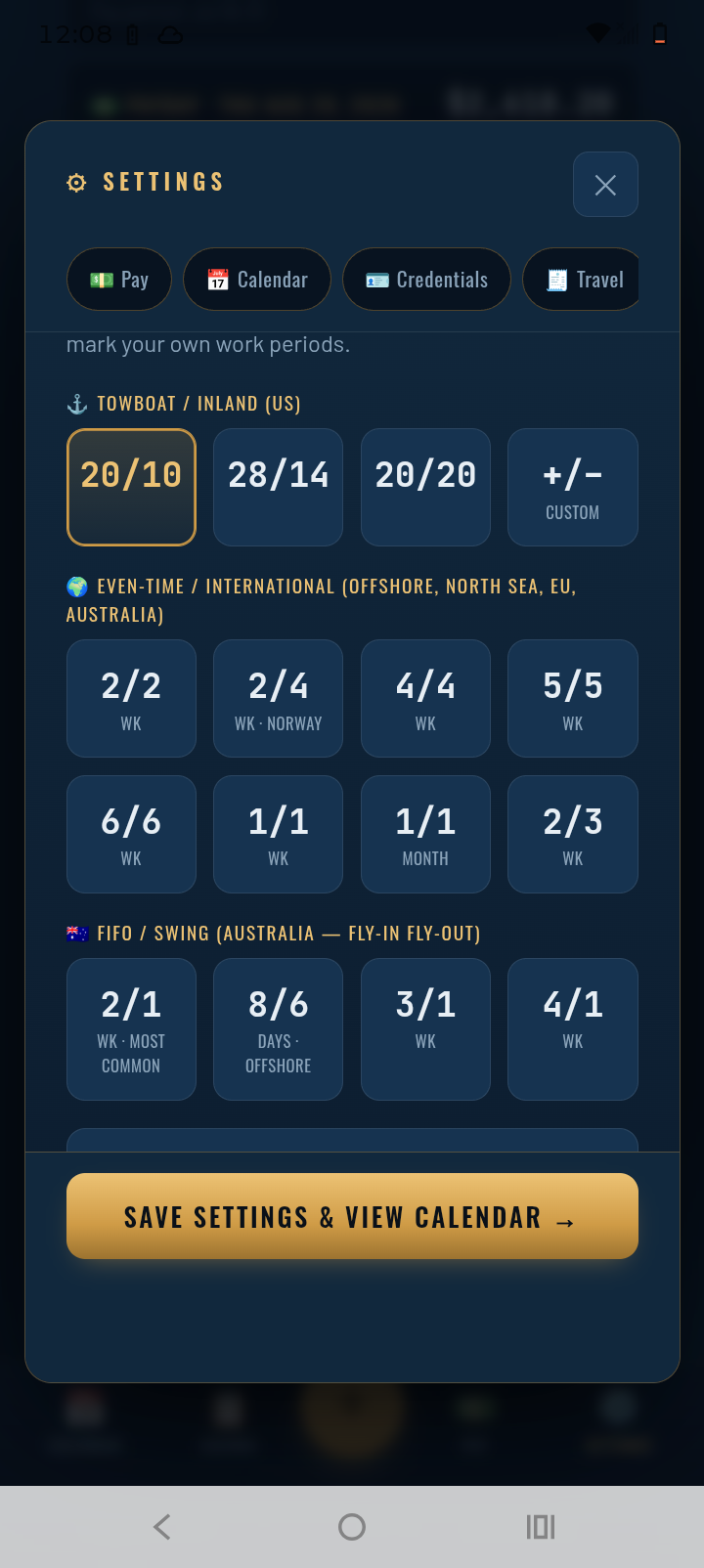
Example: a 20-and-10 towboat rotation — tap 20/10 and it highlights.
Tell it how your crew-change days fall
On the ⚓ Schedule tab in Settings, answer "How do your crew-change days fall?"
- Crew change on only one day? If you always get on and off on the same weekday(s), choose Same days every hitch. The day count flexes — a 20/20 reporting on a Tuesday gets off the Tuesday about three weeks later.
- Crew change on two different days? If your crew-change day alternates between two weekdays, choose Rotates between 2 days. Then pick the day you go back to work and put that day first in the "Get-on lands on either" row — the get-off row mirrors it, like the picture below.
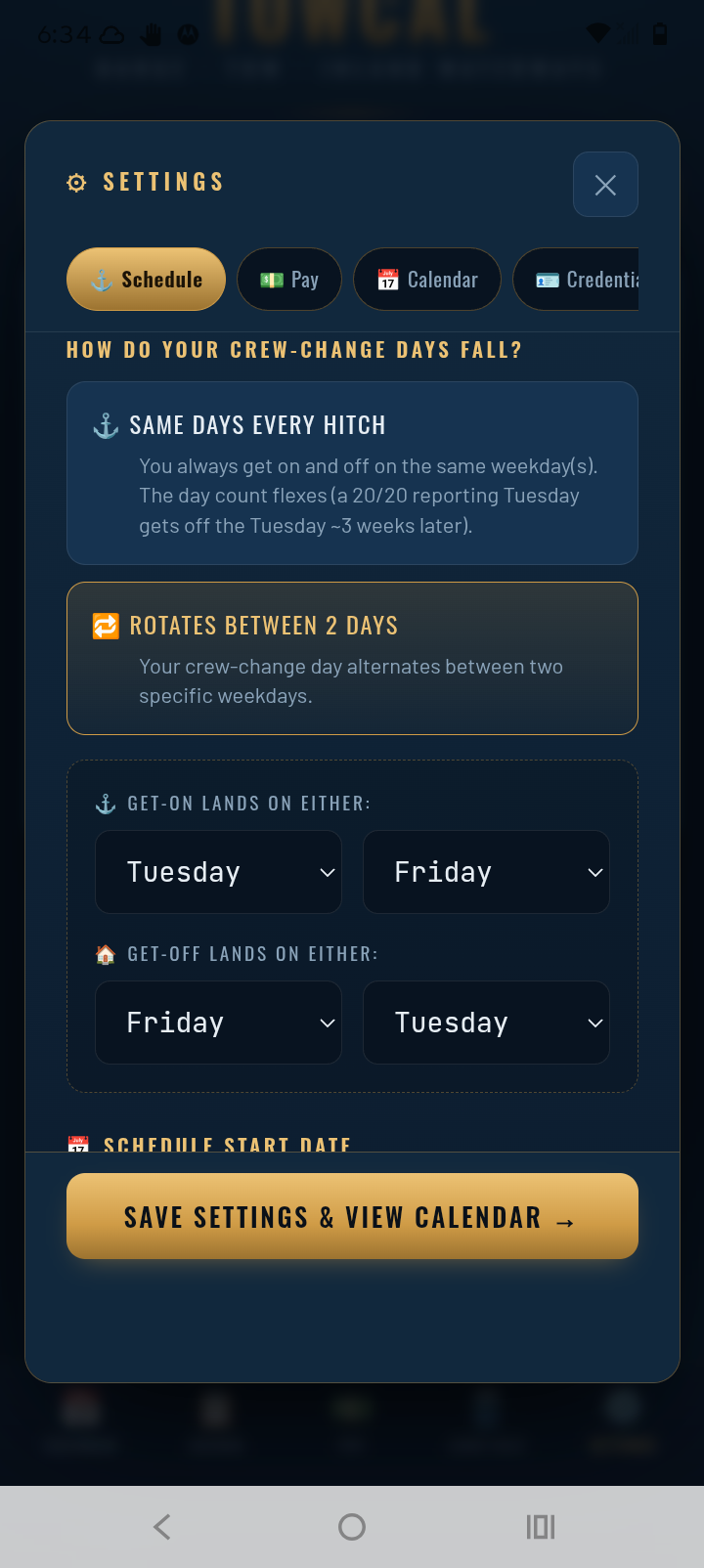
Example: your next get-on is a Tuesday, so Tuesday goes first — get-on lands on Tuesday/Friday, get-off on Friday/Tuesday.
Set your real crew-change date
Still on the ⚓ Schedule tab, enter the actual date your next hitch starts under Schedule Start Date. That anchors the whole calendar to real life — every on/off stretch after that fills itself in.
Add your pay (optional)
On the 💵 Pay tab in Settings, enter your day rate and when you're paid (by date, or by day of week). TowCal will project each paycheck right onto the calendar — gross, deductions, and take-home.
2. The five bottom buttons
| Button | What it does |
|---|---|
| 📅 Calendar | The main view — your on/off days color-coded, with paydays, appointments, and reminders shown on each date. |
| 🔽 Disch Calc | A discharge calculator for pumping off: enter the barrels, how many tanks, the feet in each tank and how long a foot takes to drop, and it tells you when you'll be stripped to zero. |
| 💵 Pay | Your projected paychecks — gross, each deduction, and net take-home, totaled on every payday. |
| 🛢️ Load Calc | A tank-barge load calculator: pick your barges, enter the rate the dock gave you, and see how long the load runs and when you'll be topped off. (Pumping estimates only — your DOI's max transfer rate always governs.) |
| ⚙️ Settings | Everything else — schedule, pay, credentials, transfer times, travel, bills, goals, and the extra tools covered below. |
Using the Load Calc
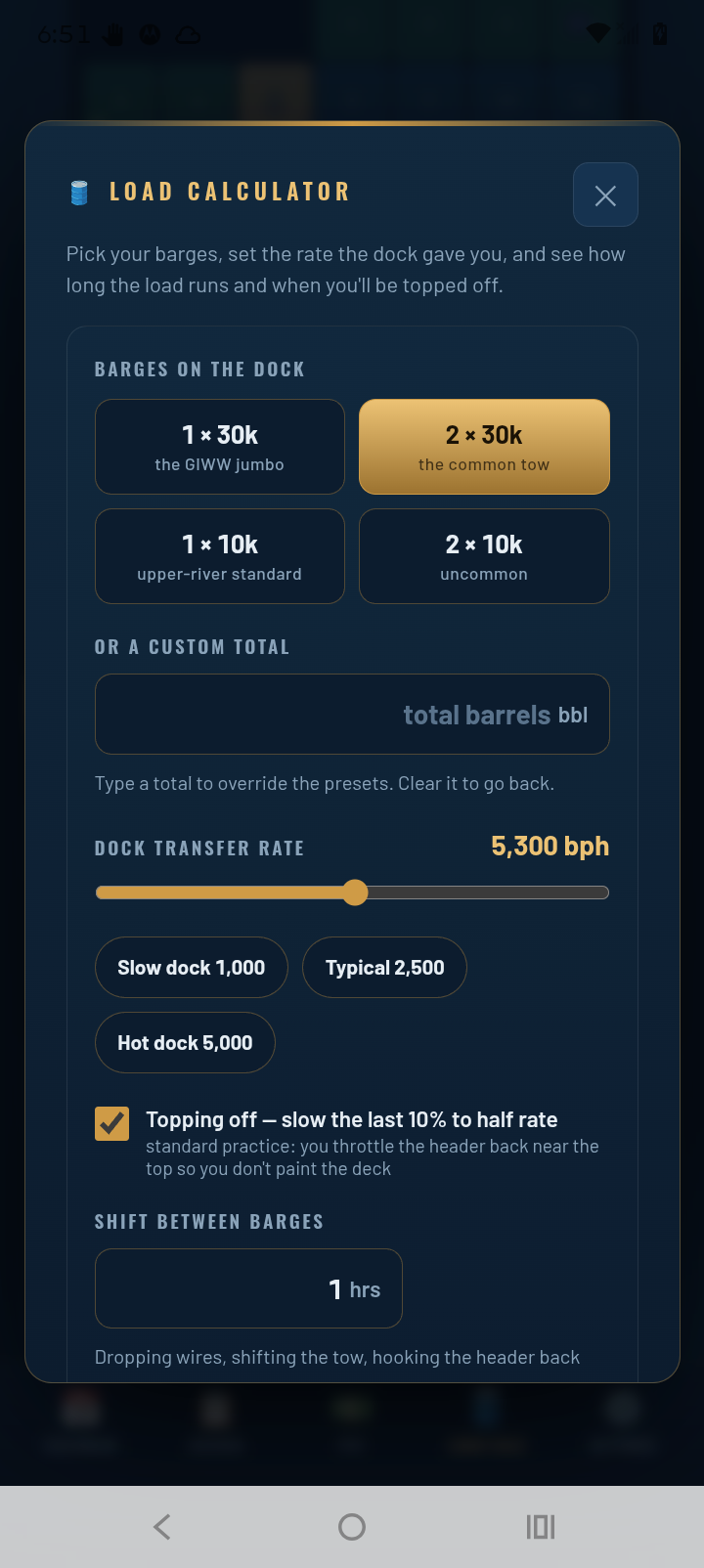
Tap 🛢️ Load Calc and it takes about ten seconds:
- Pick your barges from the presets — 1×30k, the common 2×30k tow, 1×10k, 2×10k — or type a custom barrel total.
- Set the dock transfer rate the dock gave you with the slider, or tap a preset (slow dock 1,000 · typical 2,500 · hot dock 5,000).
- Leave topping off checked (slows the last 10% to half rate, like you would on the header) and set the shift time between barges if you're loading more than one.
You get the full run time hooked-up-to-topped-off, total barrels, effective rate, pumping time per barge — and a finish-time planner: tell it when you start your watch and it tells you when you'll be done.
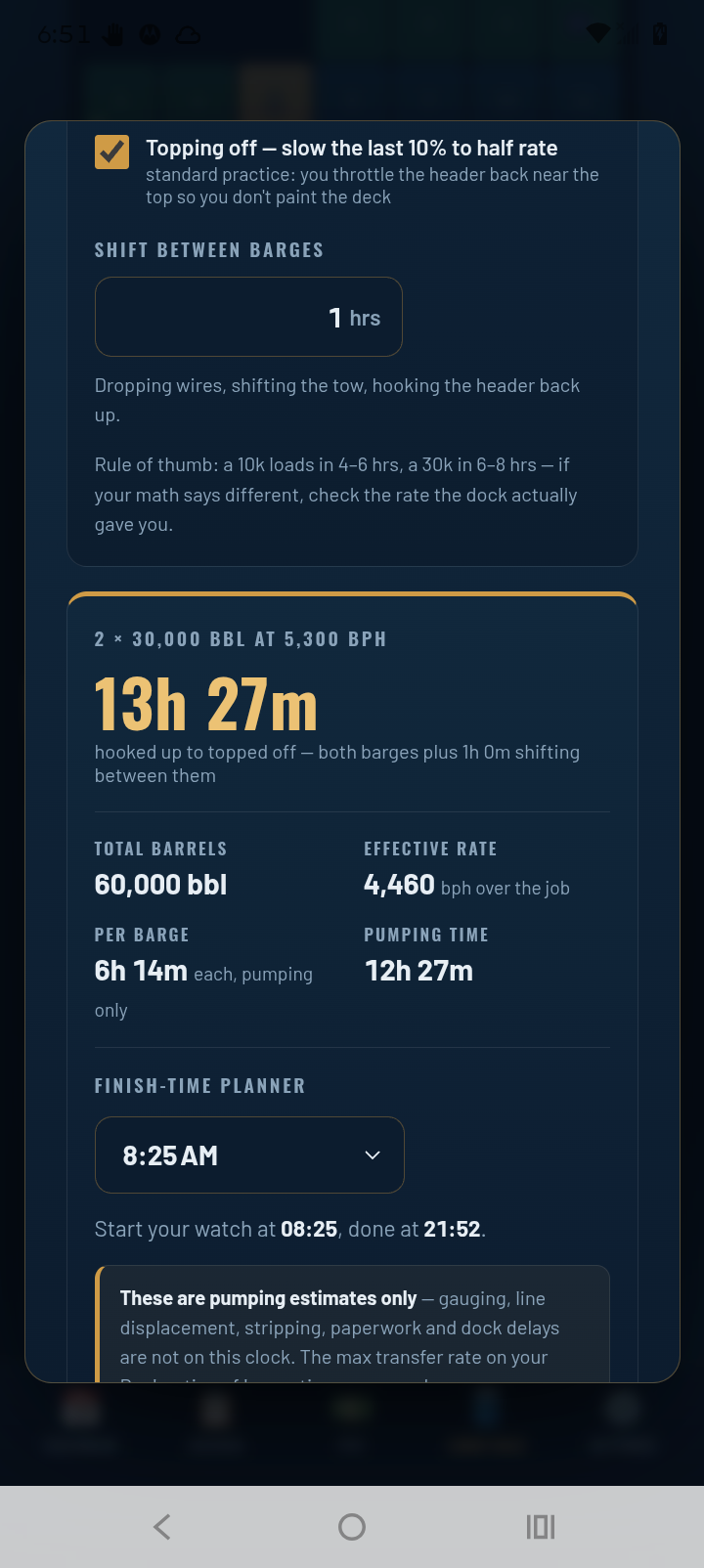
Pumping estimates only — gauging, line displacement, stripping, paperwork and dock delays aren't on this clock. The max transfer rate on your Declaration of Inspection governs, always.
Using the Discharge Calc
Tap 🔽 Disch Calc when you're pumping off. Instead of a barrel rate, it works the way you actually watch a discharge — feet in the tanks and how fast a foot drops. In 1.6 it's down to a few boxes:
- Barrels: type the barge size in barrels.
- Tanks: type how many tanks (1 to 20). One box per tank appears below.
- Feet in each tank: type the gauge reading for each tank (half-foot readings like 12.5 are fine). If they're all the same, type one and tap ⇄ Match all to copy it to every tank.
- Time to discharge 1 foot: time the gauge dropping one foot, that's your number. Add an optional stripping time allowance for drying the tanks at the end.
You get the total time to pump everything to zero, and the same finish-time planner as the Load Calc: enter when you start and it tells you when you'll be empty.
Pumping estimate only — gauging, paperwork and dock delays are not on this clock.
3. Using the calendar day-to-day
- Switch views with the pills at the top: Agenda, Week, Month, 3 Months, 6 Months, or Year. The year views are great for planning doctor's appointments and vacations around future hitches — you can look up to 18 months ahead.
- Holidays at a glance: the major holidays coming up (New Year's, Independence Day, Labor Day, Thanksgiving, Christmas) show as words right above the calendar —green means you're home that day, red means you're working or it's a crew change. Past holidays drop off as they pass.
- Tap any day to see what's on it, or to add a note, appointment, or reminder to that date.
- Add an event fast: tap + Add and type it like you'd say it — "Lunch with Sam Tuesday 1pm at Olive Garden" — and TowCal fills in the date, time, and place for you.
- Ride-over or sick day? Tap that day and mark it. TowCal adjusts your pay estimate to match what actually happened.
- Today button jumps you back to the current date from anywhere.
4. Setting up your pay
In Settings → 💵 Pay:
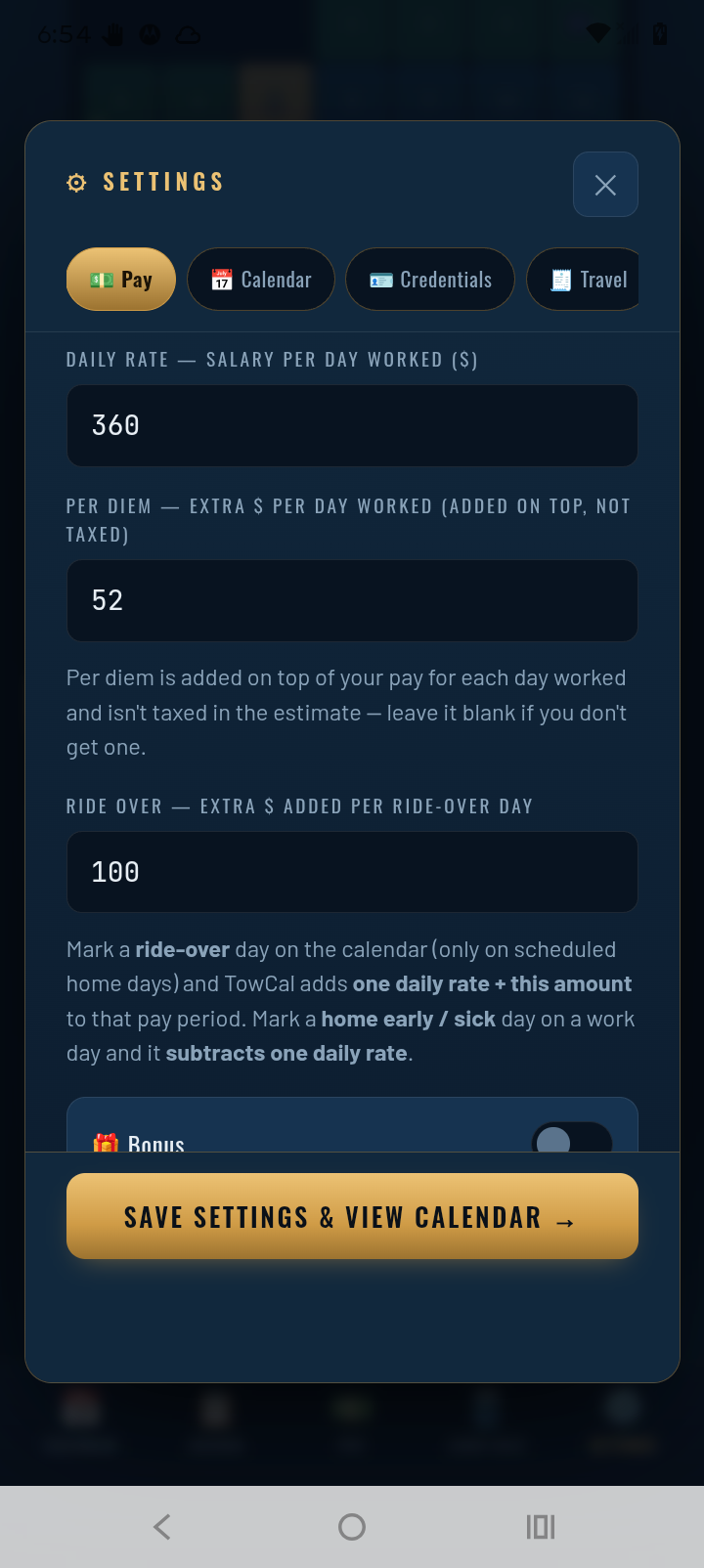
- Enter your day rate at the top of the tab — plus per diem if you get one (it's added on top for each day worked and isn't taxed in the estimate; leave it blank if you don't), and your ride-over pay. Mark a ride-over day on the calendar and TowCal adds one daily rate + that amount to the pay period; mark a home-early/sick day and it subtracts one daily rate.
- Pick your crew change day pay rate. Right under the Paycheck heading, choose ½ Half day (the default, and what most companies pay each way) or Full day if yours pays the whole day rate on the day you go to work and the day you come home.
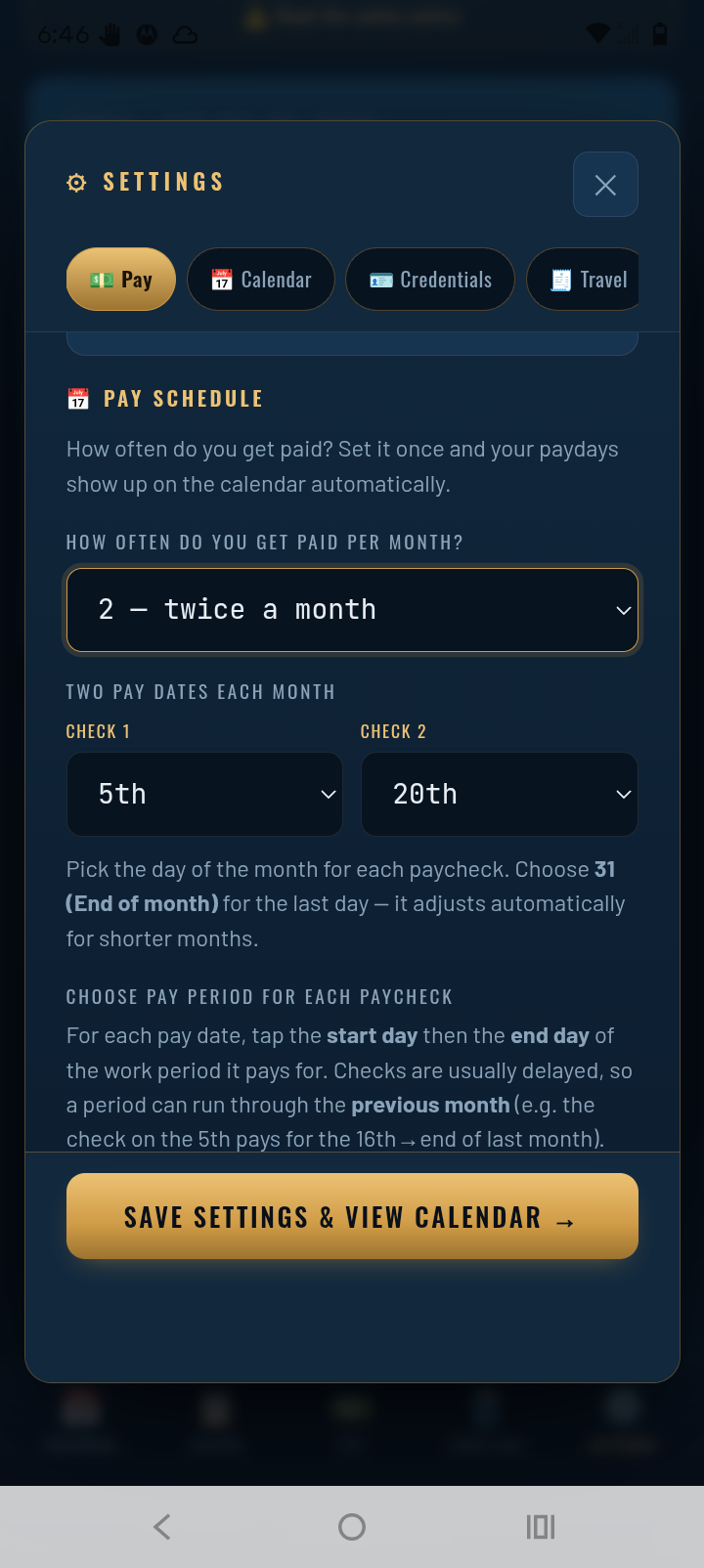
- Set your pay schedule. Under Pay Schedule, choose how your paydays are set:
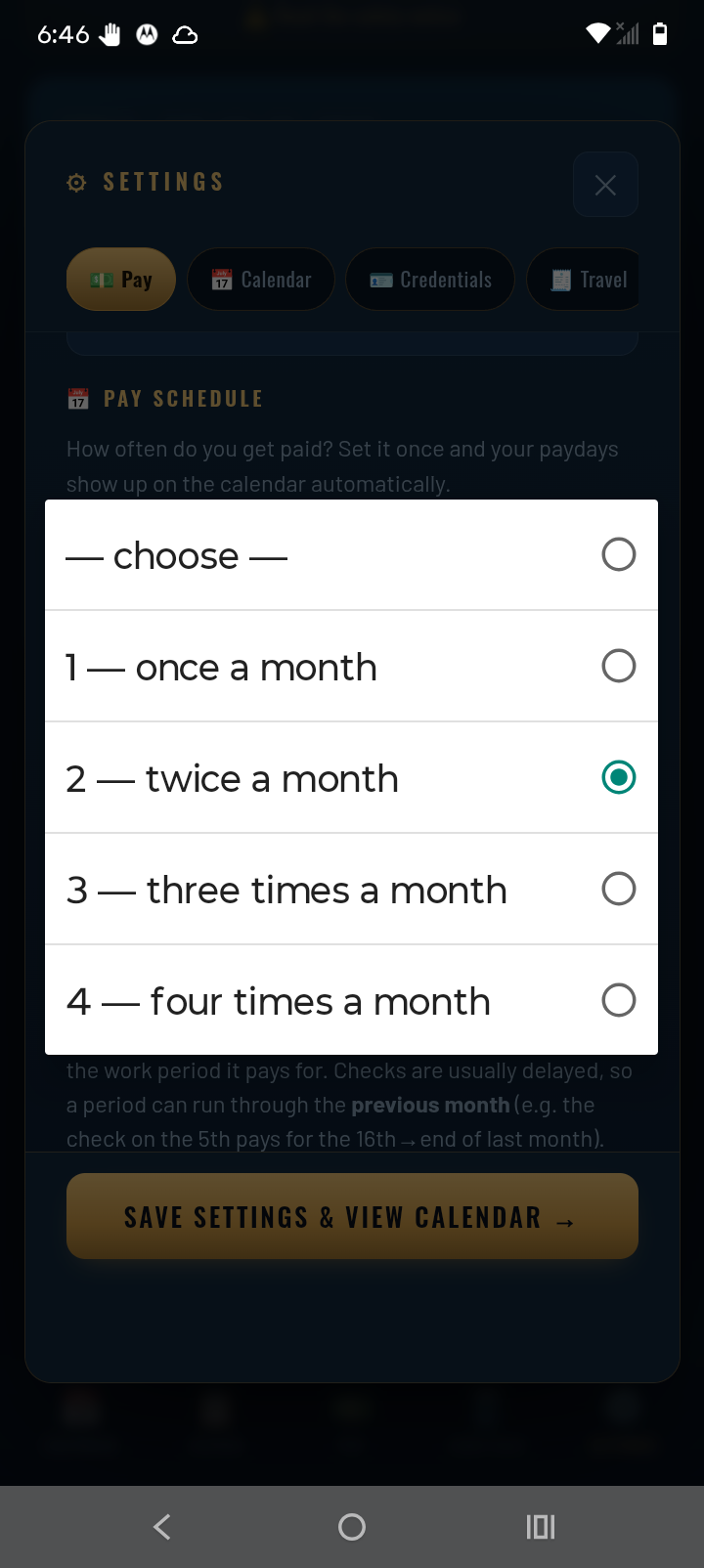
- 📆 By date (the 15th & 30th, etc.): pick how many times a month you're paid, then the day of the month for each check — say the 5th and the 20th. Choose 31 (End of month) for the last day; it adjusts automatically for shorter months.
- 🗓️ By day of week (every Friday, or every other Friday): pick Every week or Every 2 weeks, then the weekday you're paid (Once a month on this side asks for the date of the month instead). On every-2-weeks, tap the date of a real upcoming payday so TowCal knows which Friday is yours.
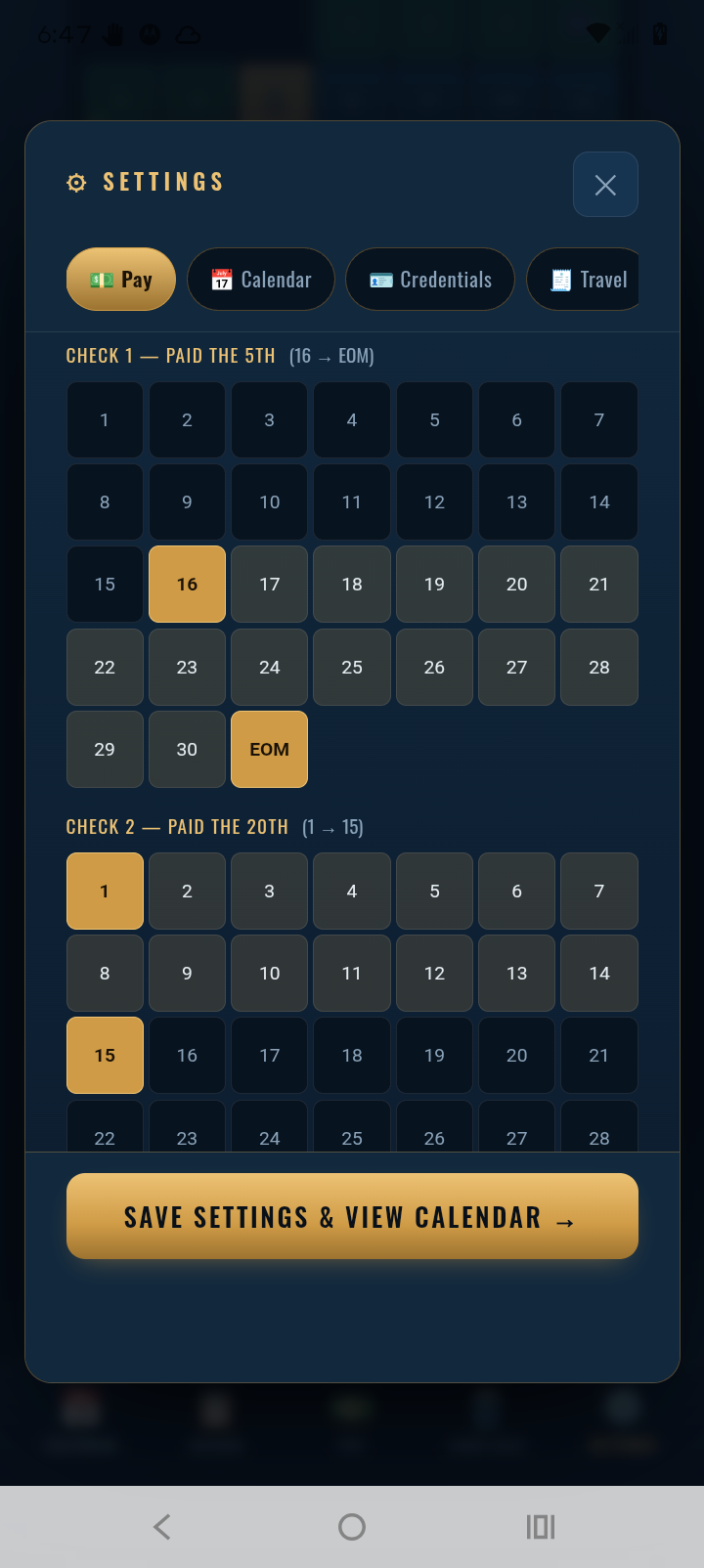
- Tell it what each check pays for. By date: for each pay date, tap the start day then the end day of the work period that check covers. Checks are usually delayed, so a period can run through the previous month — e.g. the check on the 5th pays for the 16th → end of last month, and the check on the 20th pays for the 1st → 15th. By day of week: tap the day the pay period starts, and say whether that period is paid on the next payday, a week later, or two weeks later.
- Flip on your deductions. Toggle whatever comes out of your check — medical insurance, 401(k), taxes (a flat percentage), savings, emergency fund, FSA. Leave the international/statutory ones off unless you need them.
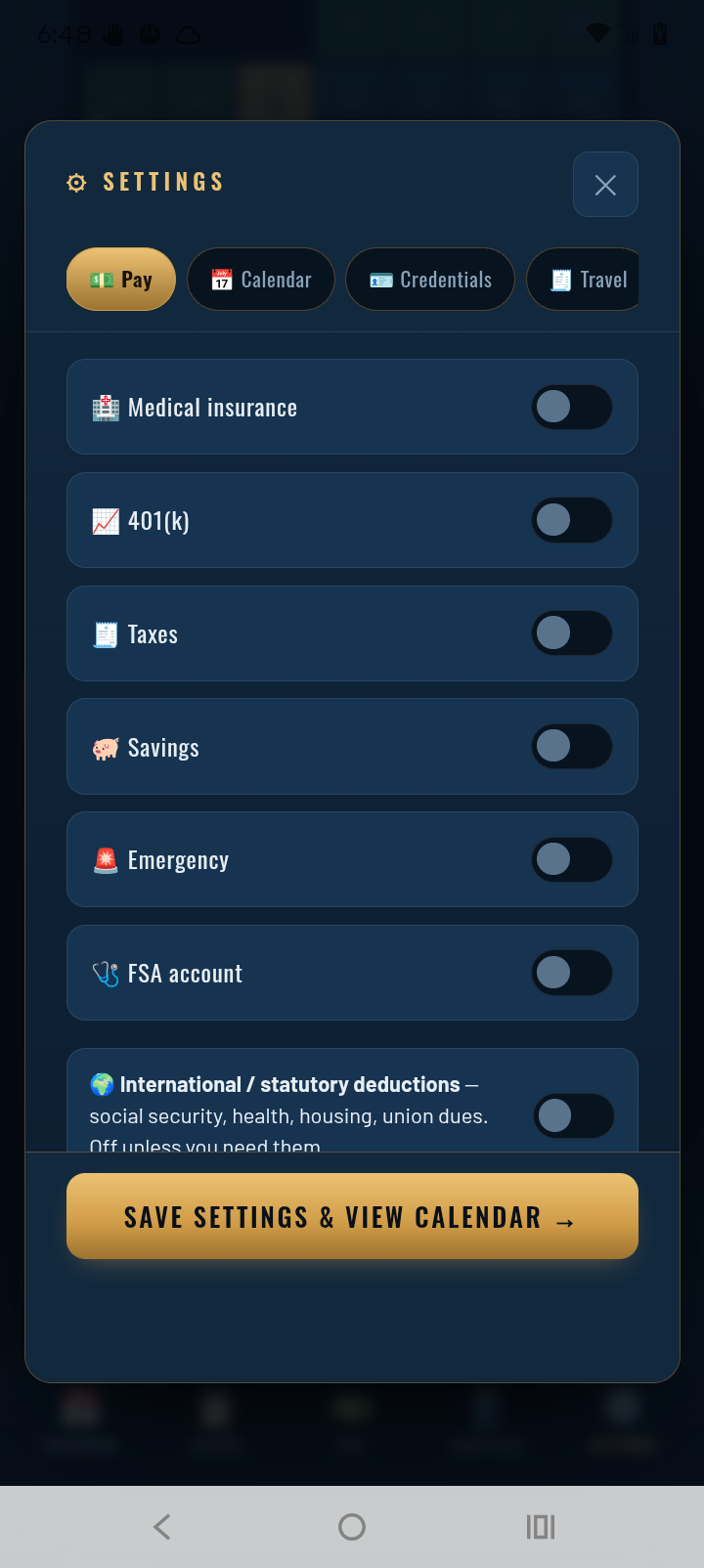
Projected paychecks then show up on the calendar and in the Pay panel, itemized on each payday.
5. What's in Settings — tab by tab
| Tab | What it's for |
|---|---|
| ⚓ Schedule | Your rotation, next crew-change date, and the Marine/Shoreside Work Mode toggle. |
| 💵 Pay | Day rate, crew change day pay (½ or full), paydays by date or by day of week, deductions, savings — feeds the paycheck estimates. |
| 📅 Calendar | Calendar appearance — colors, icons, and display preferences. |
| 💰 Money | Bank, Bills, and Payments in one place, as three sub-tabs. 🏦 Bank is your cash — checking, savings, emergency fund — with an option to show net worth under the calendar. 💳 Bills & Debts holds every bill and your credit cards and loans; each card carries its balance, payment, APR, and due day. 💪 Payments logs a one-time extra payment on any debt, on top of its normal monthly payment, optionally taken out of one of your cash accounts. |
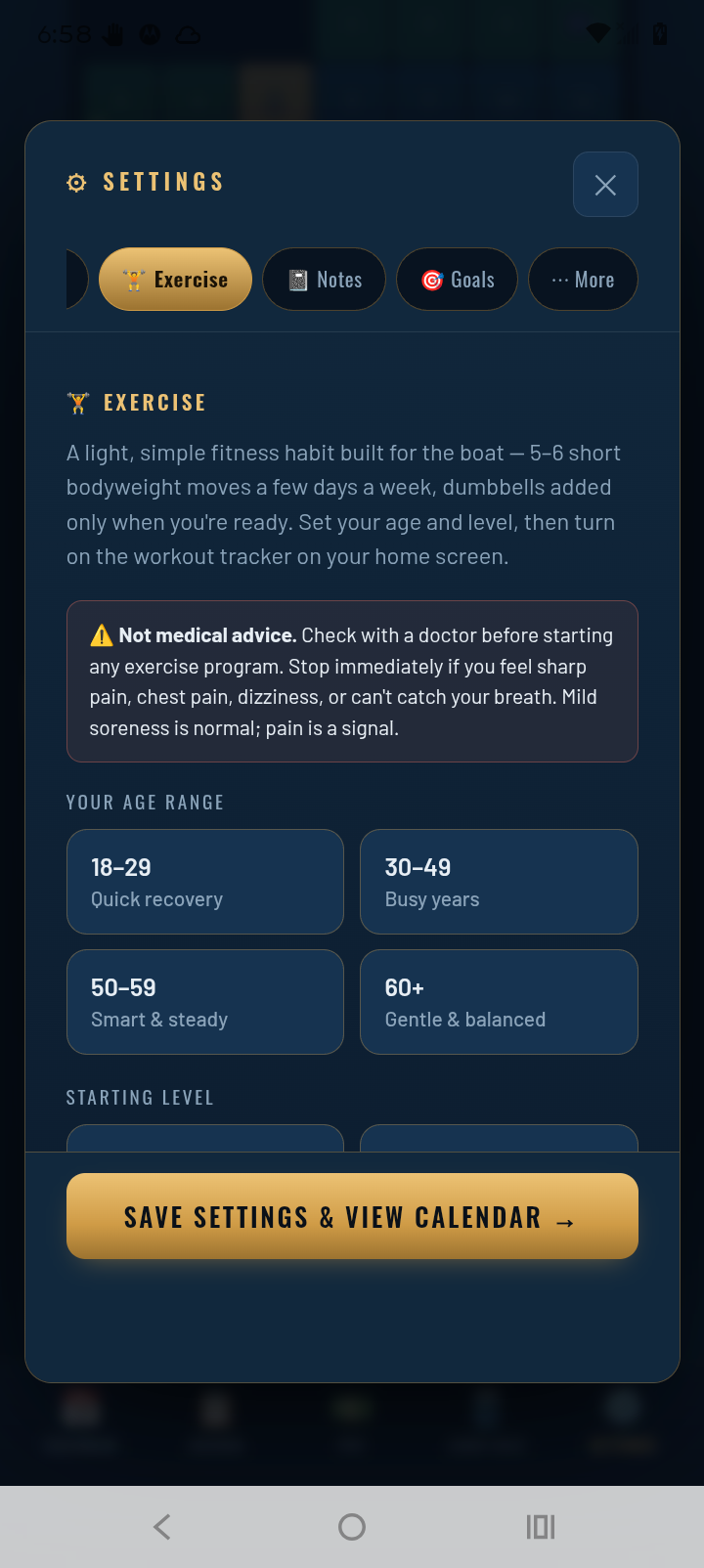
| 🪪 Credentials | Track license, TWIC, medical certificate and other renewal dates with reminders so nothing expires on you. (Don't enter real document numbers — just names and dates.) |
| ⏱️ Transfer Times | A ledger of dock transfer times. Log how long a load or discharge actually took — dock, barge, product, inspector speed, samples — and TowCal reminds you what to expect next time you're back at the same dock. |
| 🧾 Travel | Log travel expenses to and from the boat. |
| 🩺 FSA | Track a flexible spending account balance and purchases. |
| 🌊 Tide Turner | Debt-payoff planner. Check the "TT" box on any card or loan in Money → Bills, set your monthly extra, and it maps your fastest route to zero — as each debt clears, its payment rolls into the next. |
| 🏋️ Exercise | Simple workout tracking for on and off the boat. |
| 📓 Notes | A notepad that stays with the app. |
| 🎯 Goals | Set and track personal goals. |
| ⋯ More | Notification settings, the built-in help, promo-code redemption, Backup & Restore, ⭐ Rate TowCal, and reset. |
Bank balances, debt payoff, and Tide Turner are what-if planning tools only — not financial, tax, or legal advice.
A look inside a few of them:
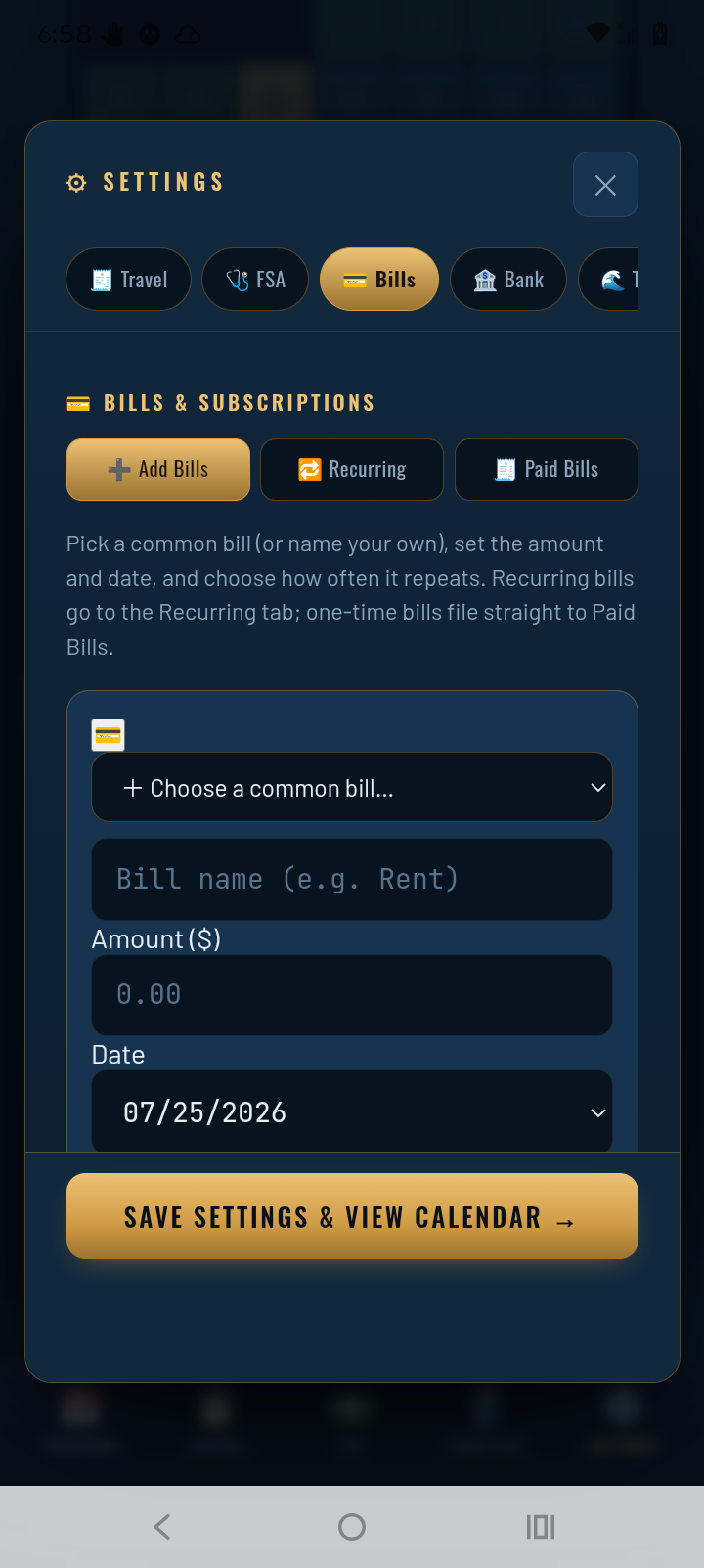
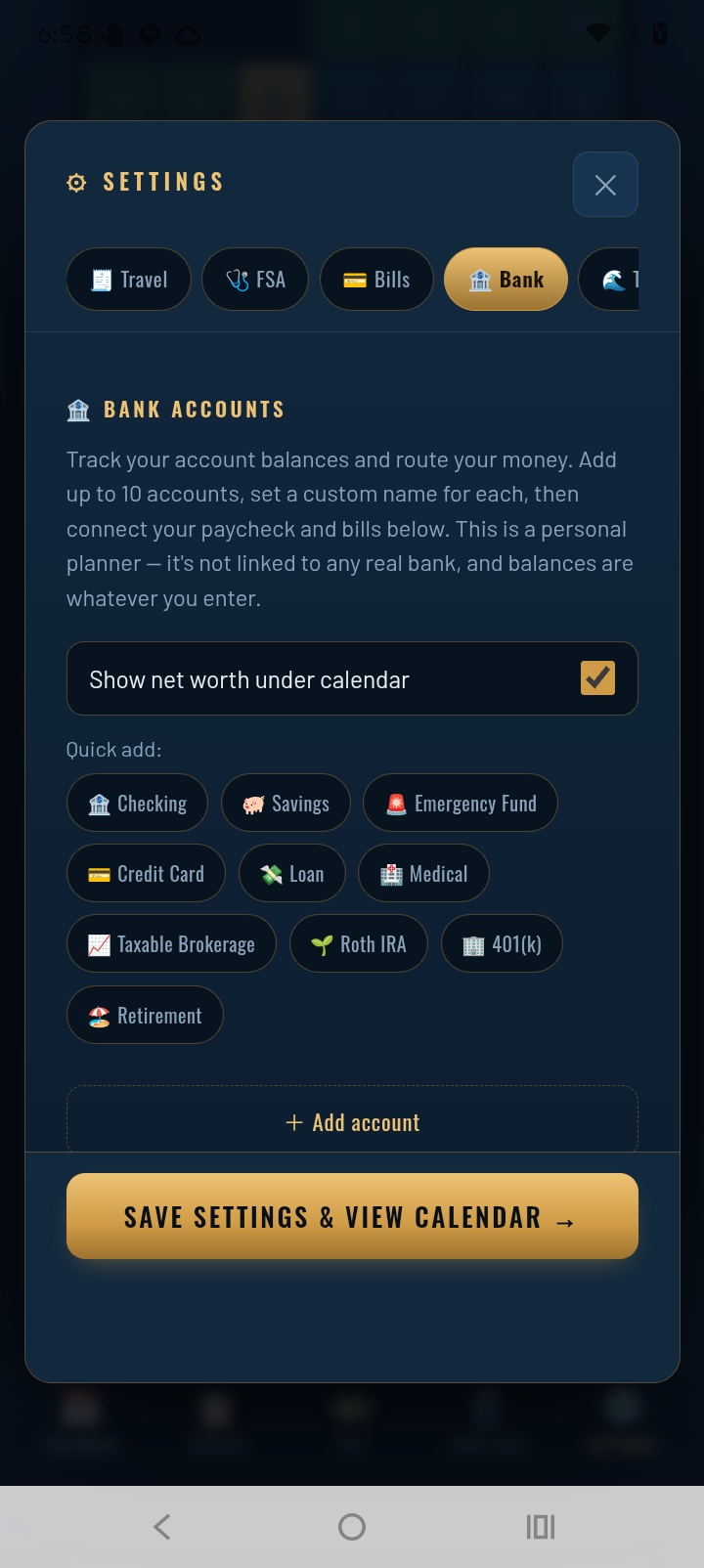
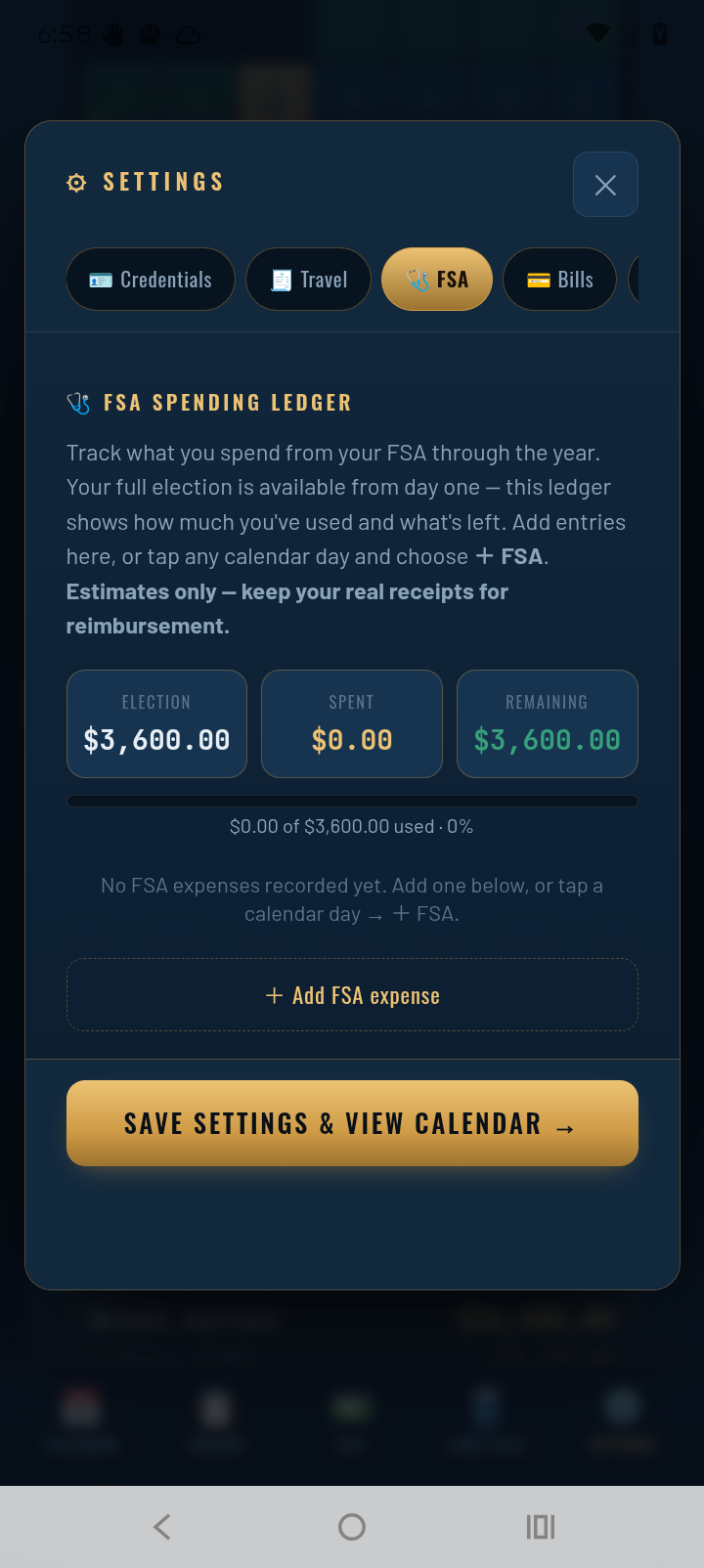
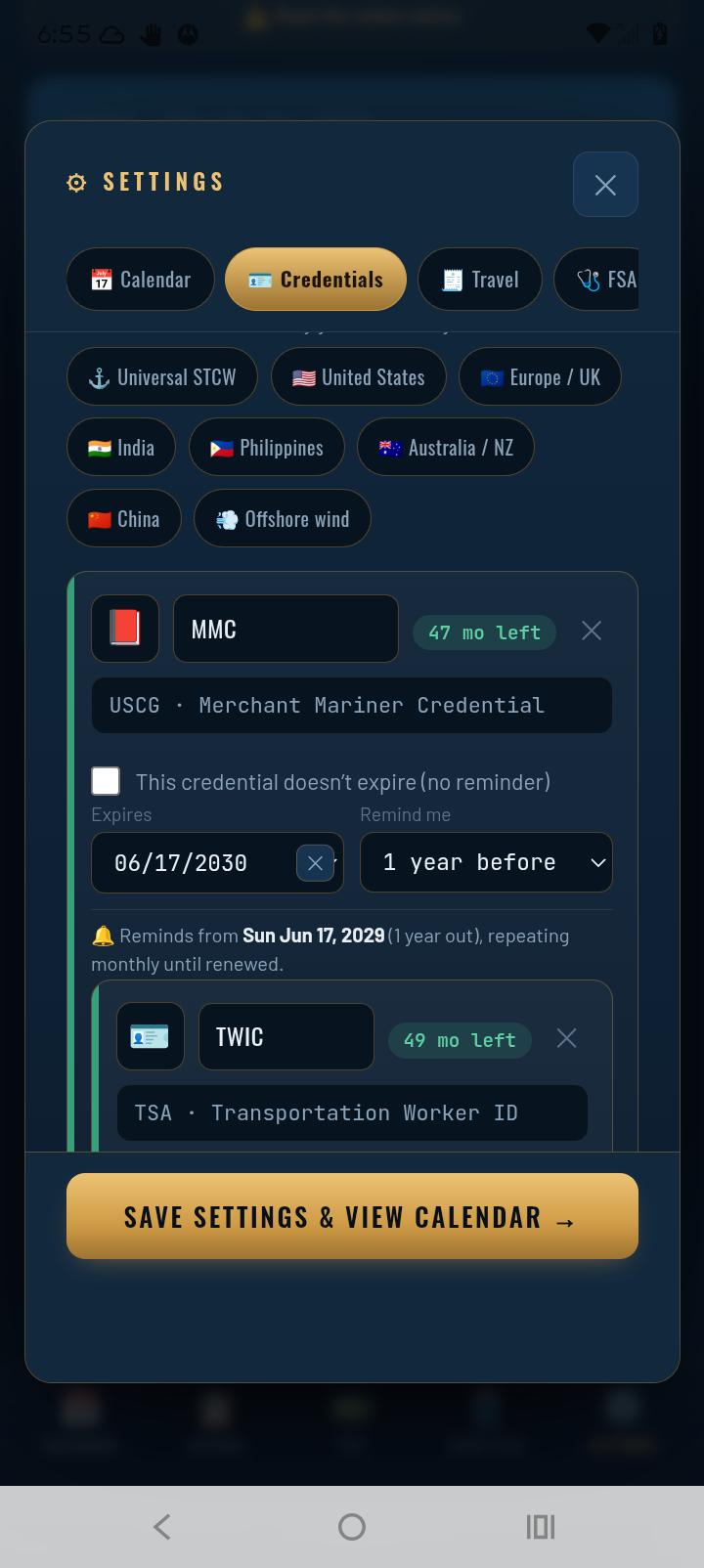
Setting up Credentials — renewal reminders on autopilot
On the 🪪 Credentials tab:
- Press United States (or your region — Universal STCW, Europe/UK, Australia/NZ, etc.) and it loads the standard credential list for your trade: MMC, TWIC, medical certificate, and the rest.
- Fill in your expiration dates on each card.
- Remove any credential you don't use — tap the ✕ on its card.
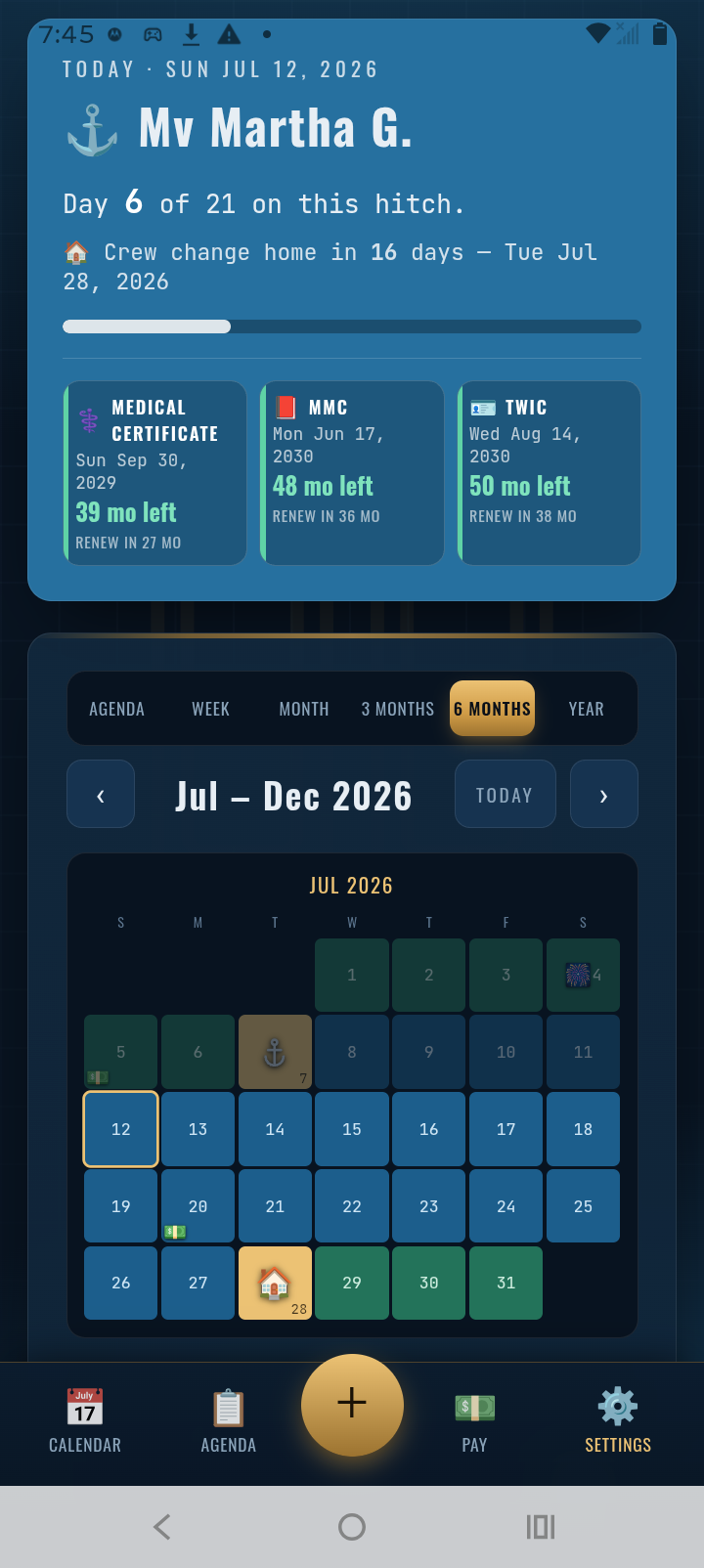
That's it — the app automatically reminds you 1 year before the due date, then keeps repeating monthly until you renew. Your renewals also show as countdown tiles right at the top of the main screen, so you see "renew in X months" every time you open the app.
6. Making sure reminders fire (Android)
Android phones aggressively pause background apps to save battery, which can stop reminders from firing while TowCal is closed. A one-time check in your phone's Settings app fixes it:
- Allow notifications: Settings → Apps → TowCal → Notifications → on.
- Let it run in the background: Settings → Apps → TowCal → Battery → Unrestricted (some phones say "Don't optimize" or "Allow background activity"). This is the #1 reason reminders don't fire.
- Samsung phones: Settings → Battery → Background usage limits — make sure TowCal is not in "Sleeping apps" or "Deep sleeping apps."
- Do Not Disturb: if DND is on, add TowCal as an allowed exception or reminders can be silenced.
Then test it: in TowCal, open Settings → More → Reminder & notification settings and tap Test — a reminder should appear within a few seconds. A scheduled reminder arriving a few minutes early or late is normal; Android groups background alarms to save battery.
7. Sharing your schedule
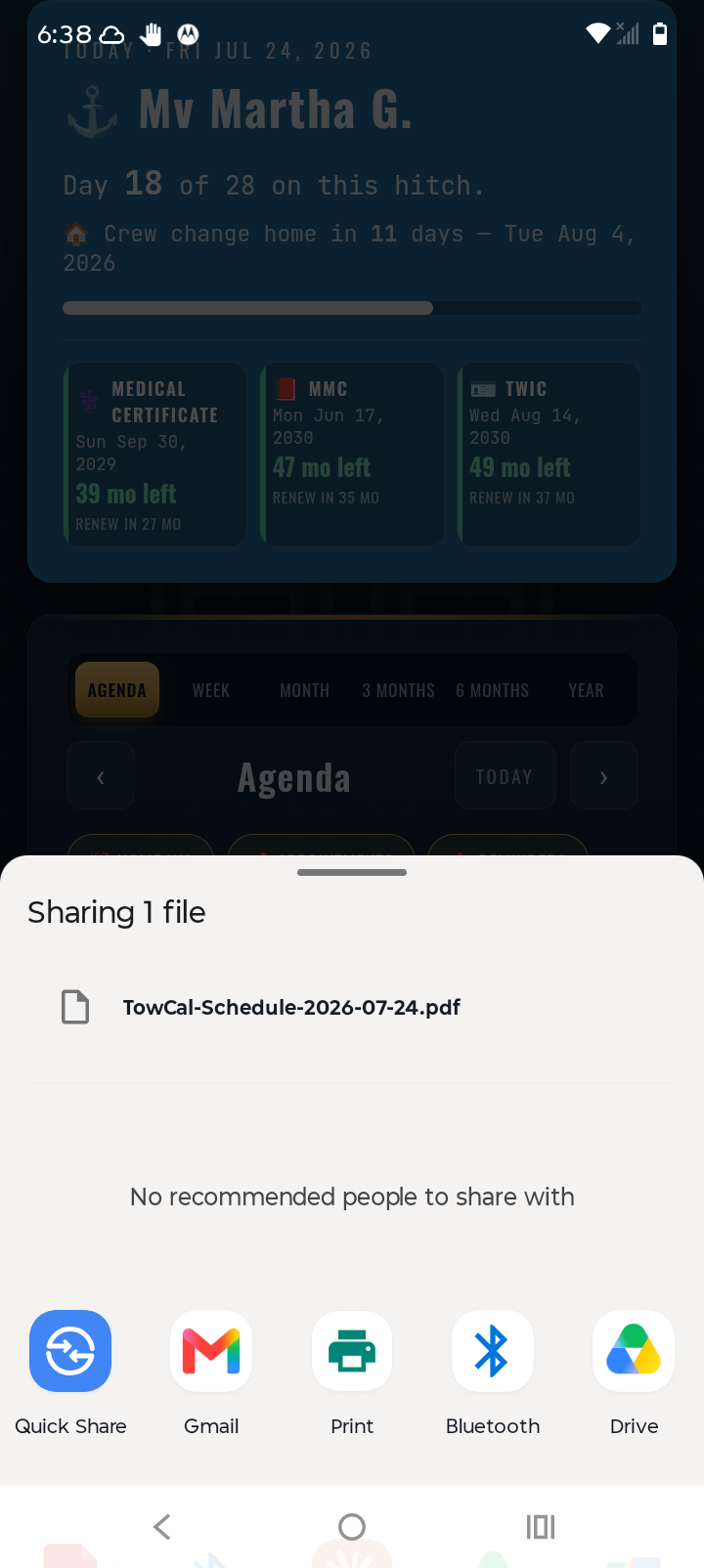
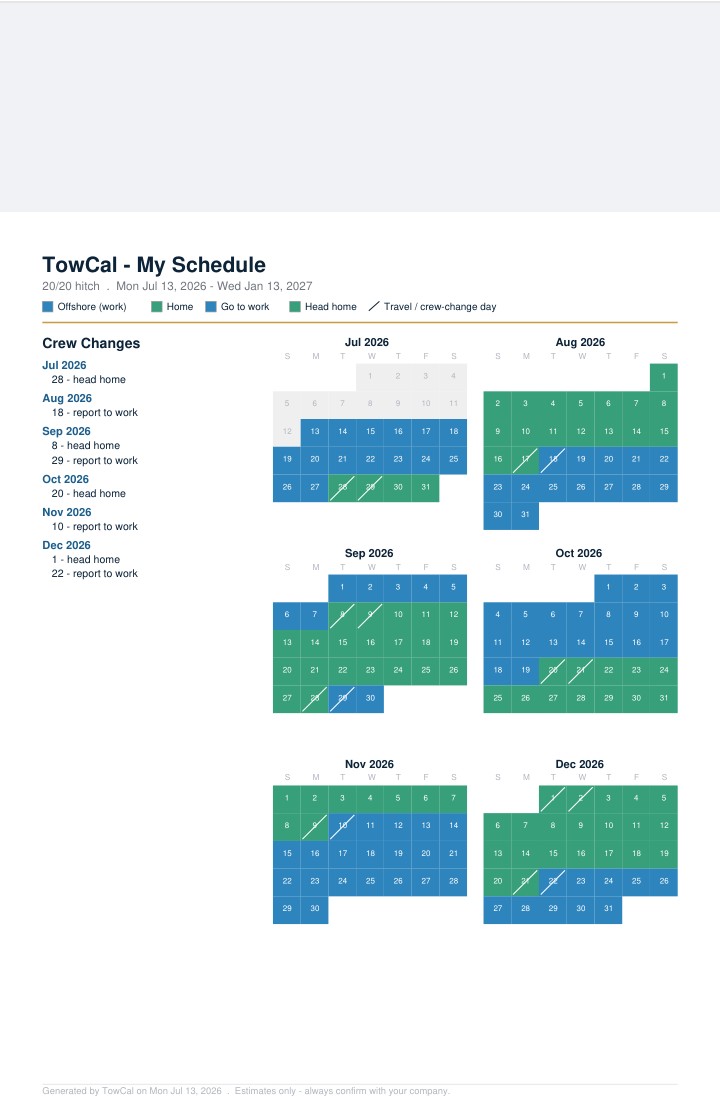
Tap the Agenda pill at the top of the calendar and tap Export PDF — you get the next six months of your schedule on one clean page, ready to text to your spouse, email to a doctor's office, or print for the fridge. Your phone's share sheet pops up so you can send it anywhere: text, email, print, or save it to your files.
8. Subscription, free month & promo codes
- Pricing: $2.99/month or $19.99/year, billed through your app store. New annual subscribers pay $14.99 for the first year, then $19.99/year.
- Free first month: every new subscriber gets their first month free automatically on the monthly plan — no code needed. The subscription screen shows "Start Free Month" when it applies, and you're not charged until the month is up.
- New phone, or just updated and seeing the subscription screen? Open TowCal and tap Restore Purchase on the subscription screen while signed in to the same App Store or Google Play account you bought with. An update never cancels a subscription.
- Promo code from a giveaway? Redeem it via Settings → More → Redeem a promo code.
- Cancel anytime: iPhone: Settings → your name → Subscriptions. Android: Google Play → Profile → Payments & subscriptions → Subscriptions.
9. Where your data lives — and how to back it up
On your phone — period. TowCal stores your schedule, pay setup, and everything else locally on your device and does not send it to us or anyone else. See the Privacy Policy for details.
- Backup file: in Settings → More → 💾 Backup & Restore, save a backup file of everything — schedule, pay, credentials, journal, goals — and keep it somewhere safe (email it to yourself or drop it in your cloud drive). On a new phone, upload that file to restore.
- iPhone & iPad: TowCal also keeps a copy in your own iCloud automatically — nothing comes to us. Install TowCal on a new iPhone or iPad signed into the same iCloud account and it offers to restore your setup on first launch.
Still stuck?
Email towcal@tutamail.com and we'll get you squared away — or see the support page for common questions.
Built by a mariner with 18+ years on the water. Stay safe out there. ⚓